
How to Fix JSON That Won't Parse (and Clean Up the Mess That's Left)
A parse error usually means the input was never strict JSON in the first place. Here's how to read the error, spot the five things that quietly break it, and turn the result into something readable.
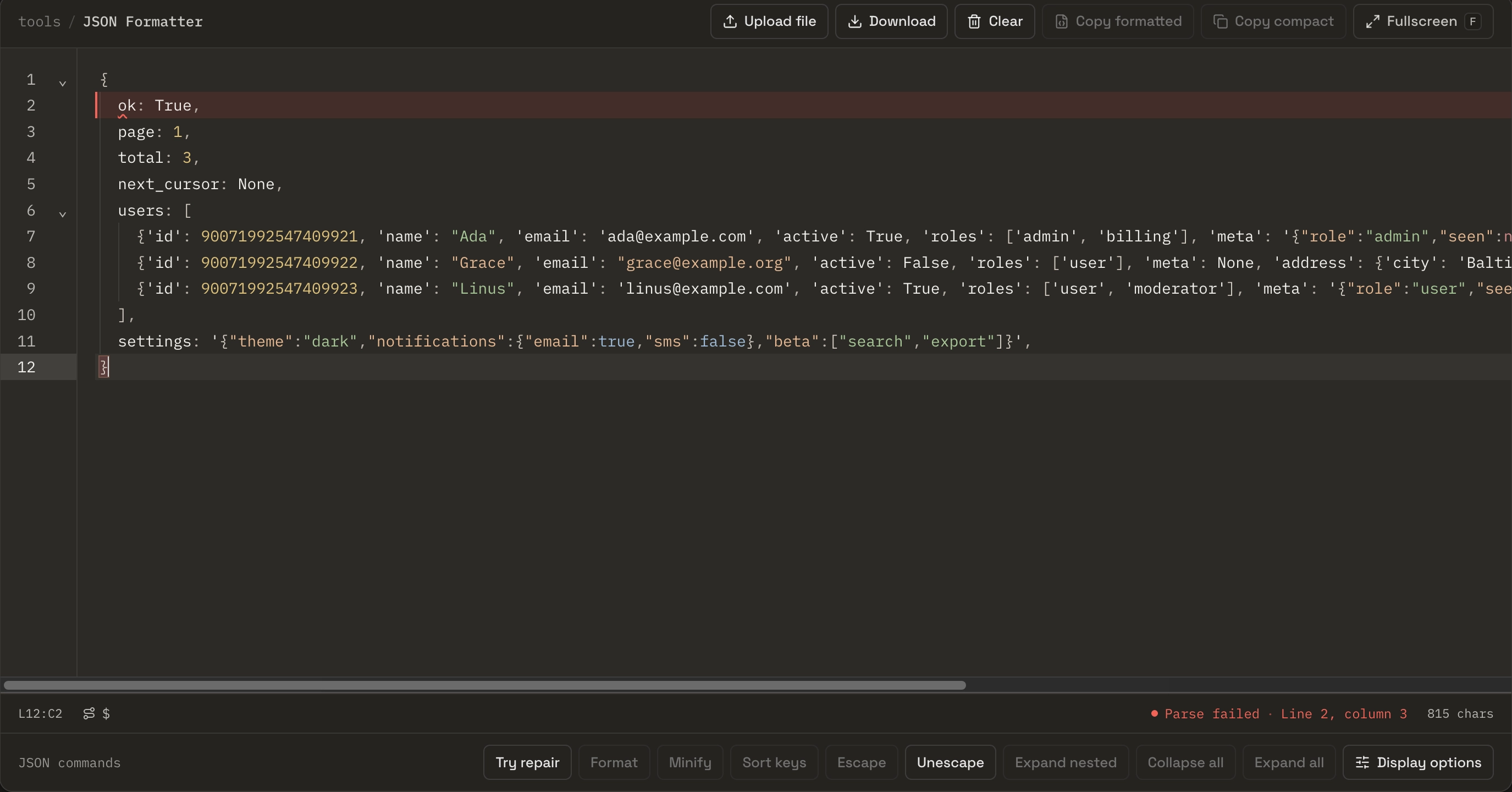
A teammate drops a line into Slack: “why does this blow up?” It’s a chunk they copied out of a Python service’s logs, and they want it as clean JSON so they can read it. You paste it into a formatter, hit format, and it goes red. Invalid JSON.
Here’s the thing that trips people up: most of the time the tool is right and the input is wrong. Not wrong as in broken beyond repair — wrong as in it was never strict JSON to begin with. It’s a Python dict that got printed, or a JavaScript object someone logged, or a payload with another payload stuffed inside it as a string. All of those look like JSON at a glance and none of them parse. This post walks through the mess in the order you actually hit it: read the error, figure out why it isn’t JSON, deal with the sneaky nested case, and then — once it finally parses — make it readable.
The blob we’ll fix
This is our teammate’s paste, near enough to something real:
{
  users: [
    {'id': 1, 'name': "Ada", 'active': True, 'meta': '{"role":"admin","seen":null}'},
    {'id': 2, 'name': "Grace", 'active': False, 'meta': None},
  ]
}
Squint and it’s obviously data. But it fails on the very first token, and it has at least four separate reasons to fail buried in five lines. We’ll clear them one at a time and use it as the running example the whole way down.
First, read the error — it’s more helpful than it looks
Before fixing anything, read what the parser actually said. JSON.parse doesn’t fail vaguely; it fails at a specific character, and the message tells you which one. The catch is that the message looks different depending on where you ran it, and that throws people off.
Take a smaller broken example — a trailing comma — so the position is easy to count:
{"name": "Ada",}An older V8 engine (Node before 21, older Chrome) reports:
SyntaxError: Unexpected token } in JSON at position 15Position 15 is a character offset from the start of the string, counting from zero and including every space and quote. Count to 15 and you land on the } — the parser expected another key after the comma and got the closing brace instead. That number is the whole point: it’s a location, not a vague complaint, and it’s usually all you need to find the stray character.
Newer V8 (Node 21+, recent Chrome) rewrote the message and, annoyingly, dropped the plain offset:
SyntaxError: Unexpected token '}', "{"name": "Ada",}" is not valid JSONNow you get a snippet of surrounding text instead of a number. Firefox, meanwhile, has always done the friendliest thing of the three:
SyntaxError: JSON.parse: expected property name or '}' at line 1 column 16 of the JSON dataLine and column, plus what it expected. Three engines, three dialects, same underlying fact: something at one exact spot isn’t allowed there. When a formatter marks the error location for you and lets you jump straight to that line and column, this is the step it saves you — you stop counting characters by hand and go look at the spot. Paste our big blob into the JSON Formatter and it stops on the first offender and points at it; click the error and it drops the cursor right there.
So the first offender in our blob is the u in users at the top. Which brings us to why.
Why it isn’t JSON: five things that look right and aren’t
Strict JSON is a narrow, boring format on purpose — that’s what makes it portable. Most “invalid JSON” is really valid something else that borrowed the curly braces. These are the five that show up constantly, and our blob has four of them.
Keys need double quotes. {users: [...]} is a perfectly good JavaScript object literal, and it is not JSON. JSON requires "users". This is the single most common reason a copied JS object or a console.log of one won’t parse — the language lets you skip the quotes, the interchange format doesn’t.
Strings need double quotes, not single. 'name' and 'admin' are out. JSON only knows ". Python’s print(), Ruby’s inspect output, and plenty of log formatters emit single quotes, so anything copied from those trips here immediately.
Python’s booleans and null aren’t JSON’s. Our blob has True, False, and None — those are Python literals. JSON spells them true, false, and null, lowercase. Same trap with NaN and Infinity, which some libraries emit and strict JSON flat-out forbids; there’s no valid way to write “not a number” in JSON, which is worth remembering before you rely on it round-tripping.
No trailing commas. The comma after the last user — None}, then ] — is illegal in JSON even though almost every programming language now allows it. This one bites hardest because editors and linters have trained us to leave trailing commas everywhere; JSON is the one place that still rejects them.
No comments. Not in our blob, but the same family: // and /* */ are not JSON. If you’re editing a tsconfig.json or a VS Code settings file with comments in it, that’s JSONC, a superset — a strict parser will choke on the comments.
You can fix these by hand, and for five lines that’s fine. For anything bigger it’s tedious and error-prone, which is why a good formatter has a repair pass: it will try strict JSON first, then progressively looser interpretations — single quotes, Python literals, trailing commas — and tell you what it had to assume. Repair is a convenience, not a guarantee; it’s for reading a log line quickly, not for blessing untrusted input. But on our blob it does the obvious thing and hands back parseable JSON.
The sneaky one: JSON inside JSON
Fix the four problems above and the blob parses — but look at Ada’s meta field:
"meta": "{\"role\":\"admin\",\"seen\":null}"That value isn’t an object. It’s a string that happens to contain JSON, escaped and stuffed inside the outer document. This is everywhere once you start noticing it: a database column typed as text that holds serialized JSON, a webhook that nests its real payload as a string, a JWT whose decoded body is JSON you then have to decode again, a log field that stringified an object before writing it. A plain formatter will show you that value as one long escaped string and leave you to sort it out.
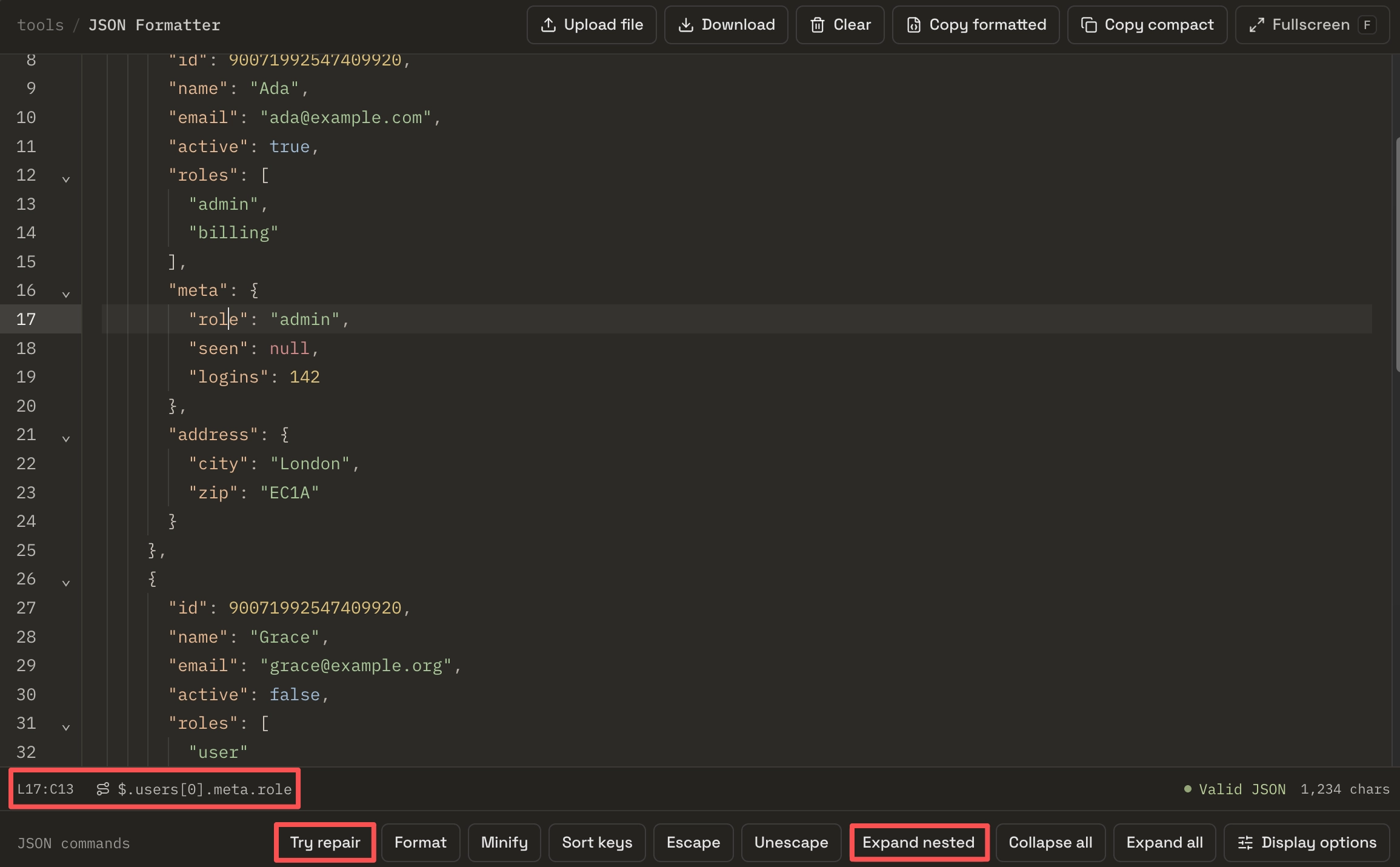
There are two moves here. If the whole thing you pasted is a JSON string — the entire blob wrapped in quotes with \" everywhere, which is what you get from copying a serialized value — then you unescape it once to turn it back into a structured document. If it’s a document that has stringified JSON in some of its fields, like our meta, you want to expand the nested strings in place, so "{\"role\":\"admin\"}" becomes a real nested object you can read and fold. The JSON Formatter has both, and expanding nested strings is the one people are most relieved to find — it saves the copy-this-value-into-another-tab-paste-unescape-copy-back dance that double-encoded data usually demands.
After expanding, Ada’s record finally reads like data:
{
  "id": 1,
  "name": "Ada",
  "active": true,
  "meta": { "role": "admin", "seen": null }
}
Now that it parses: minify, pretty-print, or sort keys
Valid JSON is the starting line, not the finish. What you do next depends on why you needed it readable.
Pretty-print is the default — indent it, put things on their own lines, make it scannable. Two-space indentation is the common house style and what most formatters produce. This is what you want when you’re reading a response or debugging a payload.
Minify is the opposite: strip every space and newline down to one line. That’s the form you want when the JSON is going into something — a request body, an environment variable, a single log line, a field in another JSON document. Nobody reads minified JSON; it’s for the wire, not for you.
Sort keys is the one people underuse. JSON objects have no defined key order, so two services can emit the same record with the fields in a different sequence — and the moment you try to compare two payloads, that unstable order buries the real change under noise. Recursively sorting keys before you save a fixture, or before a diff, makes the output stable, so the next comparison shows only what genuinely changed. (One caveat: sorting rewrites the order, so if the original order mattered — a hand-tuned config where fields are grouped deliberately — copy the original first.) This connects directly to the noise problem in comparing two JSON files: normalize both sides first, and the diff tells the truth.
Where to format it: terminal, editor, code, or browser
There’s no single right place, and pretending there is would be dishonest. Reach for whatever’s already in front of you.
Terminal. If the file’s on disk, jq is hard to beat: jq . file.json pretty-prints it, jq -S . file.json pretty-prints and sorts keys, and jq -c . file.json minifies. No jq installed? python -m json.tool file.json is on almost every machine and also reports the line and column of the first syntax error, which makes it a decent validator in a pinch. The catch: jq and python both refuse anything that isn’t already strict JSON, so they’re no help with the single-quote-and-True mess we started with — they’ll just report the error, not repair it.
Editor. VS Code and its relatives will format a JSON file with the built-in formatter (Shift+Alt+F, or format-on-save), and they’ll underline syntax errors as you type. Great when the file’s already open and already close to valid; less great for a stray blob you copied from somewhere and don’t want to save as a file first.
Code. Inside a program, it’s just JSON.stringify(value, null, 2) in JavaScript or json.dumps(obj, indent=2, sort_keys=True) in Python. This is the right tool when formatting has to happen as part of a script or a build step, not as a one-off look.
Browser. For the specific job of paste something, see it clean, pull it back out — which is most of what “format JSON” actually means day to day — a browser tool wins on friction. Nothing to install, it formats on paste, it repairs the almost-JSON cases the terminal tools reject, and it handles the nested-string mess in place. It doesn’t replace jq in a pipeline. It replaces the twelve seconds of ceremony when you just need to read something.
Why big JSON freezes tabs — and why it doesn’t have to
Everyone who works with JSON has killed a browser tab this way: paste a few megabytes of log export into some online formatter, and the page hangs, the fan spins, and you close it and go back to jq. It happens often enough that plenty of people have quietly written off browser formatters for anything big.
The usual cause is naive rendering. A lot of web formatters take the whole formatted document and put all of it into the page’s DOM at once — every line, every bracket, every syntax-highlighted span — and then re-do a big chunk of that work on every keystroke. At a few hundred lines you don’t notice. At a few hundred thousand, the browser is trying to lay out and paint more DOM nodes than any page should hold, and it stalls.
The fix is to stop rendering what nobody’s looking at. The JSON Formatter is built on an editor (CodeMirror) that only renders the lines currently in the viewport — scroll, and it builds the rows you just revealed and discards the ones you left. The document can be enormous while the DOM stays small, because the DOM only ever holds the screenful you can actually see. Syntax highlighting is incremental too: an edit re-analyzes the part that changed rather than re-parsing the whole file, and the heavier structural work (like folding every branch at once) runs against a time budget and falls back gracefully rather than freezing the tab. Add fold summaries — a collapsed array shows 5 elements, a collapsed object shows 10 keys — and you can navigate a huge payload by collapsing everything and opening only the branch you care about, without ever laying out the rest.
None of that makes JSON.parse itself free; parsing a genuinely huge file still costs something up front. But the difference between “smooth” and “frozen” is almost never the parse. It’s what happens to the DOM afterward, and rendering only the viewport is what keeps it smooth.
Is it safe to paste into an online formatter?
Worth pausing on, because the honest answer is “it depends what you’re pasting.” A lot of the JSON you’d want to format is exactly the sensitive kind — a production API response, a decoded token, an internal config, a webhook body with customer data in it. If a formatter sends that text to a server to do the work, you’ve just handed a third party a copy, and “it was only for a second” doesn’t un-send it.
The way around it isn’t to trust a privacy policy; it’s to use a tool that never needs the network. When parsing, repair, formatting, folding, and file reading all run in the browser with JavaScript, the text you paste stays on your machine — nothing is uploaded, so there’s nothing to leak. That’s the property to look for, and it’s the reason a local-first formatter is the safe default for anything you wouldn’t post publicly.
Two gotchas that survive even valid JSON
Two things worth knowing, because they pass every validator and still bite.
Big integers lose precision. JavaScript numbers are 64-bit floats, and JSON.parse reads numbers into them. A 64-bit database ID or a Twitter-style snowflake can exceed what a float represents exactly, and it silently rounds:
JSON.parse('{"id": 9007199254740993}').id
// → 9007199254740992   ← not the number you had
The JSON was valid. The ID is now wrong by one, quietly, and no error fired. If you’re moving large integer IDs through anything JavaScript-based, keep them as strings.
Duplicate keys. {"a": 1, "a": 2} is technically valid JSON, and the spec doesn’t say what a parser should do with it. In practice most parsers keep the last one, so this reads back as {"a": 2} and the first value vanishes without complaint. It’s rare, but when a generated document has a duplicated field, this is why one of them seems to disappear.
Putting it back together
Our Slack blob started as a Python dict printout with single quotes, True/None, a trailing comma, and a payload hidden inside a string. The path out was the same order every time: read the error to find where it breaks, recognize why it isn’t strict JSON, expand the nested string that was hiding real data, and only then format, sort, or minify depending on what you’re doing with it next.
Formatting is usually step one, not the whole job. Once it’s clean, comparing two versions is a job for a structural JSON Diff; turning a sample response into typed interfaces is what JSON to TypeScript is for; and pulling one field out of a deep payload without scrolling is what a JSONPath evaluator does. Different jobs, but they all start the same way — with JSON that actually parses, and that you can finally read.